The short answer
- Correct first, then grade: convert log footage to your display, balance exposure and white balance, match your shots, and only then add a creative look.
- Trust the scopes (waveform, parade and vectorscope) more than your eyes, especially on a laptop screen.
- Use a simple, repeatable node tree in the Color page so every project starts the same way.
Color grading has a reputation as a dark art. It is really a sequence of small, logical decisions. Most beginners get lost because they jump straight to a dramatic look before the footage is even balanced. Fix that order and your grades improve overnight.
We cut and grade our own work in DaVinci Resolve, and the free version has everything you need to learn the fundamentals below.
Correction vs grading
Color correction (do this first)
- Make the image technically right
- Set black and white points
- Neutral white balance and accurate skin
- Every shot in a scene matches
Color grading (do this second)
- Make the image feel a certain way
- Warm or cool mood, contrast style
- Stylized looks and LUTs
- Guides the viewer's eye
A look built on top of an unbalanced image falls apart the moment the next shot cuts in. A look built on balanced, matched shots holds together across a whole film.
Know what you shot
Before you touch a wheel, know your footage's color space and gamma. If you shot a standard picture profile, the clip already looks "normal" and you can grade it directly. If you shot log (Canon Log, S-Log, V-Log and similar), the image looks flat and gray on purpose. It holds more highlight and shadow detail, but it needs a conversion to look right on a normal screen.
Flat footage is not bad footage. It is unfinished footage. The conversion step is what turns it into a picture.
There are two common ways to convert:
- A manufacturer LUT: a file from the camera maker that maps log to a standard display (Rec.709). Quick, but the conversion is fixed.
- A Color Space Transform (CST) node: Resolve's built-in tool where you set the input color space and gamma (what the camera shot) and the output (usually Rec.709 and Gamma 2.4 for most web delivery). More flexible, and our preference.
Read the scopes
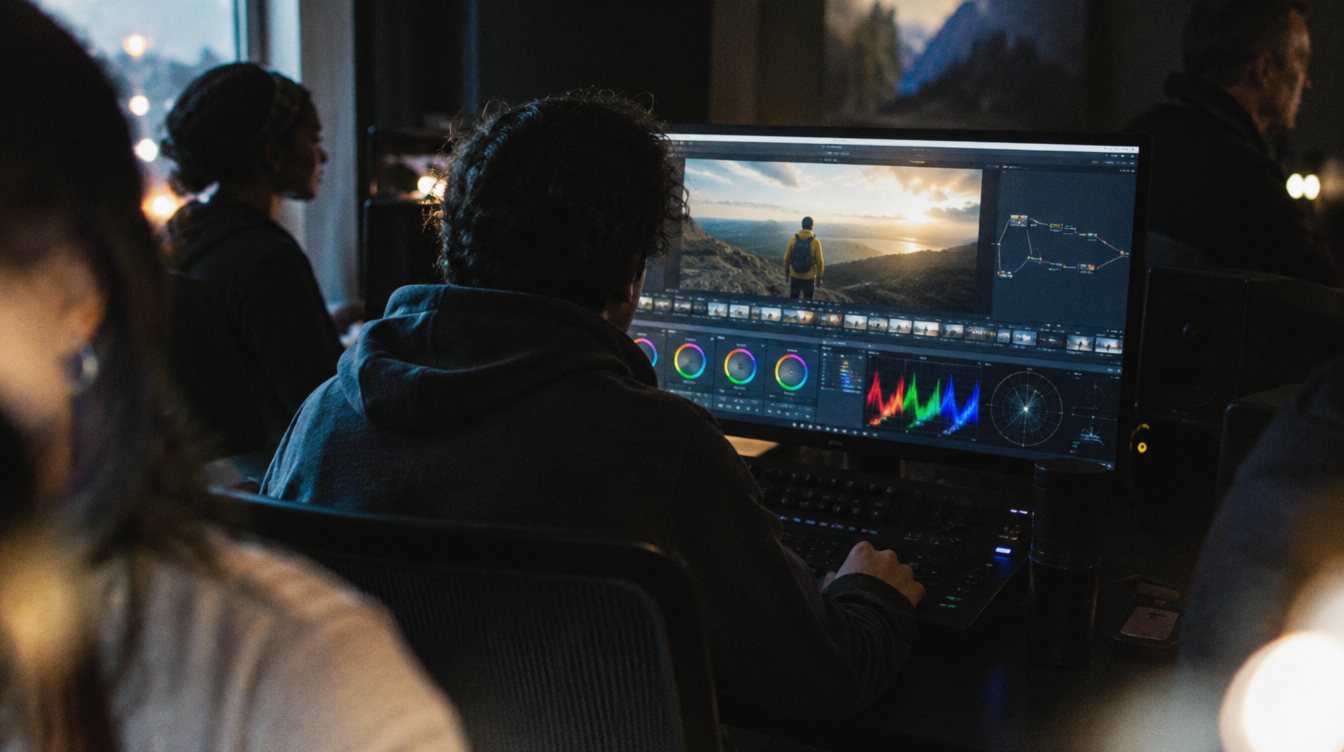
Open the scopes on the Color page (the Workspace menu, then Video Scopes). Laptop screens, room light and tired eyes all lie. Scopes do not.
| Scope | What it shows | What to use it for |
|---|---|---|
| Waveform | Brightness from left to right across the frame | Setting blacks near the bottom and whites near the top without clipping |
| Parade (RGB) | Red, green and blue levels side by side | White balance: neutral grays and whites line up across all three |
| Vectorscope | Hue and saturation as a circle | Skin tones (they sit along the skin tone indicator line) and oversaturation |
| Histogram | How many pixels sit at each brightness | A quick sanity check on overall exposure |
To turn on the skin tone indicator, open the vectorscope settings and enable it. Healthy skin of every complexion sits near that line. Brightness changes from person to person, but the hue stays close.
A beginner node tree
In Resolve, every adjustment lives in a node. Separate nodes make it easy to find and change one thing without breaking another. Build this tree once, save it, and start every project from it.
- Node 1: Exposure
Use Lift, Gamma and Gain (or the Offset wheel) to place shadows and highlights on the waveform. Keep blacks just above the bottom and highlights just below the top.
- Node 2: White balance
Find something that should be neutral, like a white shirt or gray wall, and adjust until the parade lines up. Resolve's Temp and Tint controls on the primaries panel make this easy.
- Node 3: Color Space Transform
If you shot log, place the CST here to convert to Rec.709. Grading exposure before the transform tends to feel smoother and more natural.
- Node 4: Contrast and saturation
Add a gentle S-curve in the Curves panel and adjust saturation. Small moves. Beginners almost always overdo saturation.
- Node 5: Secondary fixes
Use a qualifier (eyedropper) or power window to fix one area: brighten a face, calm a distracting red sign, darken a hot window.
- Node 6: Look
Now add style: a creative LUT at reduced strength, warmer highlights, cooler shadows. This node is the only one that changes from project to project.
Some colorists convert first and correct after. Both work. What matters is that you do it the same way every time so your results are predictable.
Matching shots
An interview cut between two cameras, or a wedding shot across a day of changing sun, needs matched shots or the edit will feel jumpy.
- Pick a hero shot
Grade the most important shot in the scene until you love it.
- Use split screen
Grab a still of the hero shot (right click, Grab Still), then enable the wipe to compare it against the next shot.
- Match on the scopes
Line up the black levels, white levels and skin tone position. Then fine tune by eye.
- Copy and adjust
Apply the hero grade to similar shots (middle-click a clip in the timeline thumbnails to copy its grade to the selected clip), then only touch Node 1 and Node 2 per shot.
Match the scene first. A beautiful shot next to a mismatched one looks worse than two plain shots that agree.
Common beginner mistakes
- Adding a creative LUT straight onto log footage before conversion and balance
- Crushing blacks so far that shadows turn into flat black blobs
- Pushing saturation until skin turns orange
- Grading on a bright laptop screen in a dark room, then exporting a muddy image
- Grading every shot from scratch instead of copying a hero grade
- Forgetting to check the final export on a phone, which is where most viewers watch
Practice drills
- Scopes only
Balance five clips while looking only at the scopes, then turn on the viewer. You will be surprised how close you get.
- Two-camera match
Record the same person on your phone and your camera. Match them until a viewer cannot tell which is which.
- Same shot, three looks
Take one balanced clip and build a warm look, a cool look and a high contrast look. Keep skin natural in all three.
- Save your tree
Once the six node tree feels natural, save it as a still in the Gallery and apply it at the start of every project.
Better grades start with better footage. Read camera settings for event video for exposure and picture profiles, how to light an interview for clean skin on set, and our editing setup guide for the computer side. If you would rather hand the whole process off, see how we approach content production.
Frequently asked questions
Is the free version of DaVinci Resolve enough to learn grading?
Yes. The free version includes the full Color page, scopes, nodes, qualifiers and power windows. The paid Studio version adds features like more advanced noise reduction and some higher resolution and codec options, but you can learn everything in this guide for free.
Should I use LUTs?
Use a technical LUT or a Color Space Transform to convert log footage. Use creative LUTs sparingly, after the image is balanced, and usually at reduced strength through the node's key output gain.
Why does my export look different from Resolve?
Usually a display or gamma tag mismatch, especially on Macs. Check your project's color management settings, grade on a calibrated or at least consistent display, and test the export on the devices your audience uses.
How long does it take to learn color grading?
You can learn a solid correction workflow in a few weeks of regular practice. Developing taste for looks takes longer, and comes from grading a lot of footage and studying films you love.