The short answer
- Deliver 9:16 at 1080 x 1920 (or higher), and keep faces, text and key action inside the center safe zone so app buttons do not cover them.
- Decide early: shoot vertical natively for social-first content, or shoot horizontal with plenty of room and crop when you need both formats.
- Hook in the first second, cut tight, and burn in captions, because many people watch with the sound off.
Vertical video is not just horizontal video turned sideways. The frame is tall and narrow, the screen is in someone's hand, and the app's buttons and captions sit on top of your picture. Shooting and editing for that reality is a skill of its own.
The specs that matter
Platforms change their limits on video length, file size and recommended settings often, so check each app's current guidelines before a big campaign. The 9:16 frame and the habits below have stayed constant.
Native vertical or crop from horizontal?
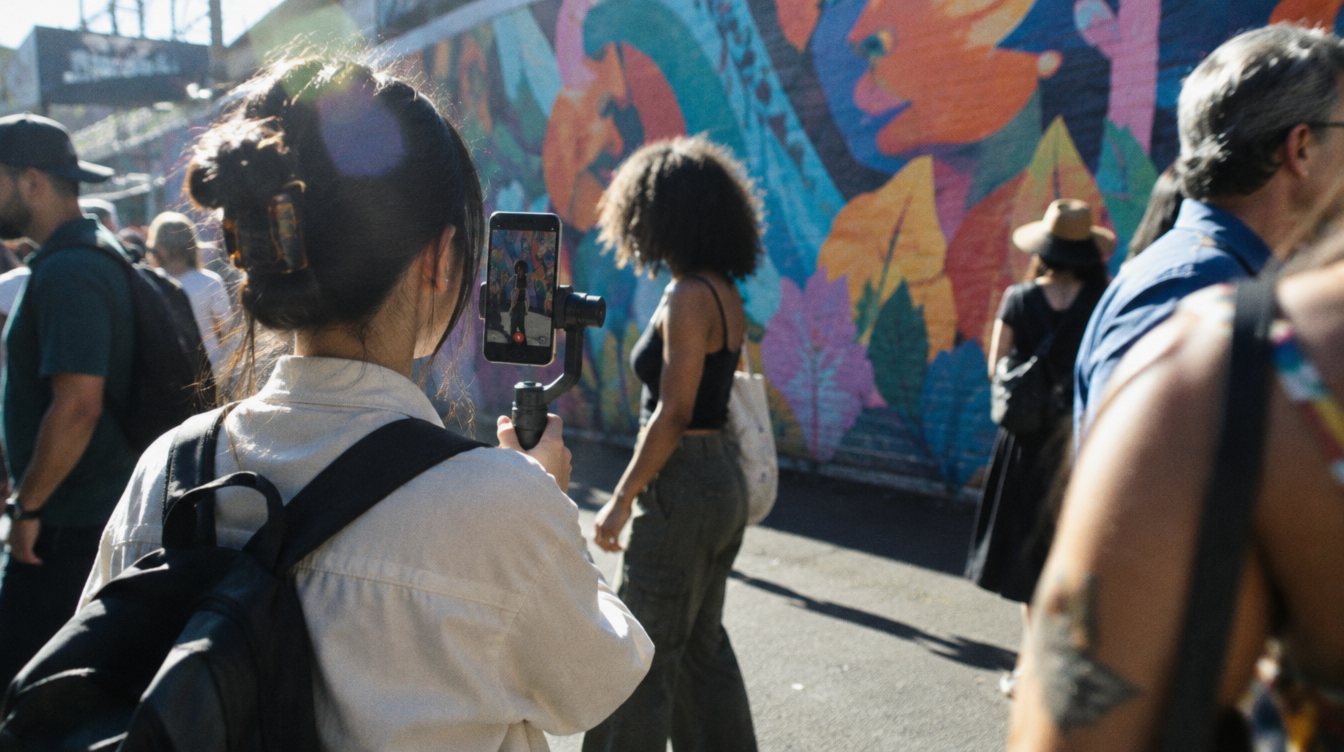
Shoot vertical natively
- Uses the full sensor for the vertical frame, so maximum quality
- You compose for the real frame while you shoot
- Best for social-first content and talking to camera
- Needs a vertical mounting solution (an L-bracket or a rotating cage)
- The footage does not work for horizontal delivery
Shoot horizontal, crop to vertical
- One shoot covers YouTube, websites and social
- Shoot in 4K or higher so the vertical crop still holds up
- Frame looser and keep the subject centered
- Lets you reposition the crop in the edit
- The vertical version has less resolution than native
For events and brand shoots where clients want both a horizontal film and social clips, shooting high resolution horizontal and cropping is usually the efficient choice. For a creator filming a direct-to-camera series, native vertical makes sense.
If you plan to crop, set up a 9:16 frame guide in your camera or monitor if it offers one. You will see exactly what survives the crop while you shoot.
Framing for the tall frame
Vertical framing rewards people and faces and punishes wide landscapes. A few rules:
- Keep eyes in roughly the upper third of the frame, not dead center
- Leave the bottom fifth or so clear of anything important (captions and the app's text sit there)
- Keep a margin on the right side, where the like, comment and share buttons stack
- Avoid tiny subjects in wide shots; get closer than you would for horizontal
- Use vertical lines: doorways, people standing, staircases, tall plants
- Move the camera vertically (tilts and rising shots) more than side to side
The exact safe zone varies by app and by device, so test a draft on your own phone before posting. If a caption or face is hiding under a button, nudge it.
Shooting tips
- Plan the hook
Know what the first second shows. A face mid-sentence, a surprising visual or the payoff itself all work better than a logo or a slow fade in.
- Shoot short pieces
Vertical edits move fast. Get lots of 2 to 4 second usable moments instead of long takes.
- Get close
Close-ups read on a phone. Wides often do not.
- Record clean audio
Even with captions, good sound matters when people turn it on. See how to record clean audio for interviews.
- Capture transitions on purpose
A hand covering the lens, a whip pan or a match on action are planned in camera, not invented in the edit.
Editing vertical video
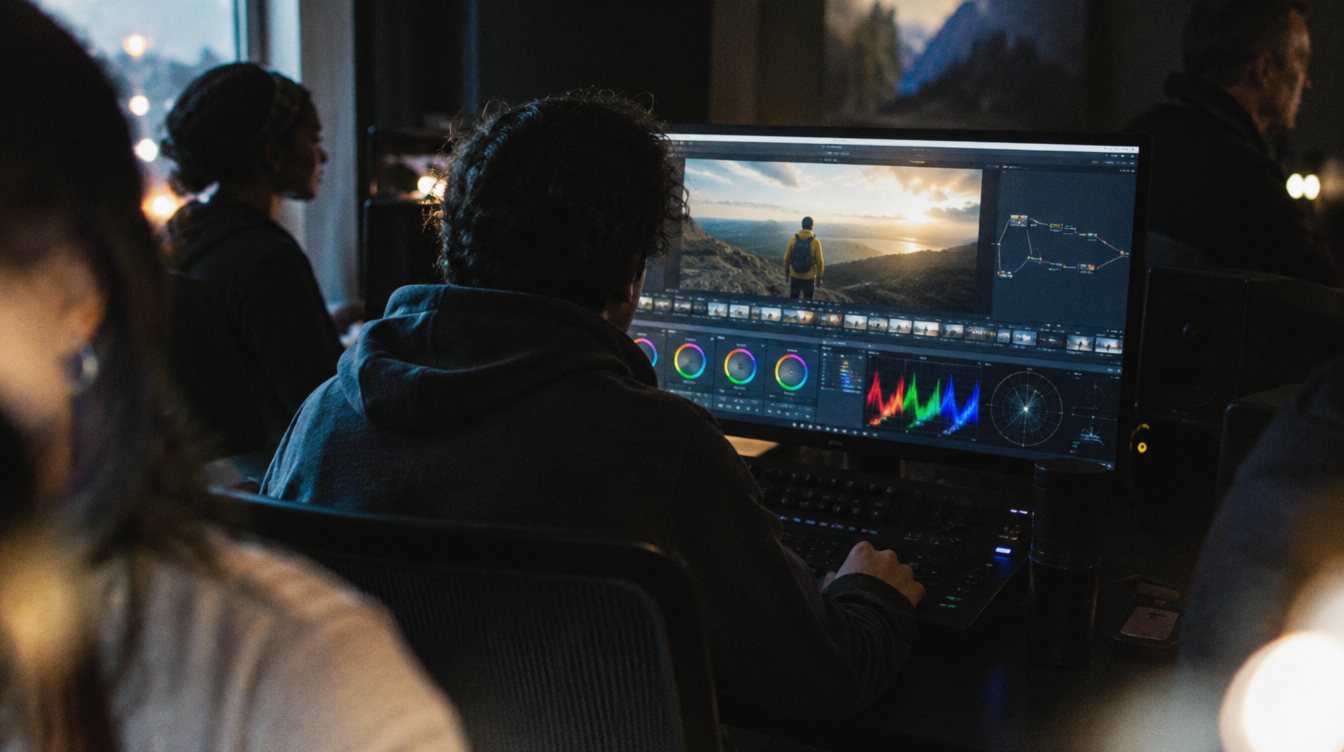
You can edit vertical in nearly any editor. In DaVinci Resolve (our editor), create a timeline with a custom resolution of 1080 x 1920, or use the vertical resolution options in the timeline settings. If the source is horizontal, scale and reposition each clip to keep the subject in frame, or use automated reframing tools where your software offers them, then check every shot by hand.
- Cut the hook first
Put the strongest moment at the very start. You can explain later.
- Trim every pause
Cut breaths, ums and dead air. Vertical pacing is tighter than YouTube pacing.
- Add captions
Burn in captions in a readable font, two lines at most, positioned above the bottom safe zone. Check every word; auto captions make mistakes with names and slang.
- Use text on screen sparingly
One clear line that frames the video (the "what is this" line) beats paragraphs.
- Mind the loop
Many short videos replay automatically. An ending that flows back into the start keeps people watching a second time.
- Export and test on a phone
Watch it on the device, in the app's preview, before posting.
Design for a thumb that is already moving. The first second is your whole pitch.
Music and licensing
Use the platform's built-in music library when posting from a personal account, and stick to licensed or royalty-free music for brand and client work. Business accounts often have a more limited library, so check what is available before you build an edit around a specific song.
A simple workflow for batch content
If you post often, batching saves enormous time. One planned shoot can feed weeks of posts.
| Stage | What happens |
|---|---|
| Plan | Write 8 to 12 hooks or topics, each with a one-line takeaway |
| Shoot | Film all talking segments in one setup, then b-roll for each |
| Edit | Build a template timeline with caption style, safe zone guides and export settings |
| Review | Watch every clip on a phone, fix captions and crops |
| Schedule | Post consistently rather than in bursts |
This is the idea behind a content day. Read what a content day is and how it works, and for the b-roll side, how to shoot b-roll that tells a story. Businesses that want this handled can see our short-form content options.
Practice drills
- Hook test
Write five different first lines for the same video and film them all. Show friends and ask which made them want to keep watching.
- Crop practice
Take an old horizontal video and cut a vertical version. Notice which shots survive and which do not.
- Thirty-second rule
Edit a two-minute idea down to 30 seconds without losing the point.
Frequently asked questions
What resolution should vertical video be?
1080 x 1920 (9:16) is the standard. You can shoot and export in 4K vertical, but the apps compress heavily, so clean exposure, focus and audio matter more than extra resolution.
Can I shoot vertical video with a regular camera?
Yes. Mount the camera on its side with an L-bracket or a cage that rotates, or shoot horizontal at high resolution and crop. Some cameras can also tag footage as vertical so editors and phones display it correctly.
Should I edit in the app or in a real editor?
In-app editing is fine for quick posts and trending audio. For client work, a desktop editor gives you better control over color, audio, captions and consistent branding.
How long should a Reel or TikTok be?
As long as it holds attention and no longer. Many effective posts land under a minute, but the right length depends on the content. Watch your retention data and cut wherever people leave.